Build a Color-Change Button: Validate Roblox Requests on the Server
Connect a GUI button to a shared display block using a RemoteEvent, an allowed-color list and a per-player cooldown in your own Studio project.

A GUI button can ask to change a shared object, but the server should decide whether that request is allowed. A small color display makes the distinction easy to see: the client sends a color name, and the server chooses the actual Color3 value from a short list.
This walkthrough is for a place you own in Roblox Studio. Every living player is deliberately allowed to change this one decorative display from anywhere in the place. It has no currency, rewards or saved progression. A shop, door or inventory action would need additional rules for ownership, distance and permission.
Create three clearly named objects
Insert an anchored Part into Workspace, rename it ColorDisplay and give it an obvious gray starting color. Put it where players can see it from the spawn area. In ReplicatedStorage, add a RemoteEvent named RequestDisplayColor.
In StarterGui, create a ScreenGui containing a TextButton. Give the button readable text such as Mint, a visible size and a position inside the screen. Add a LocalScript as a child of that button. The GUI is copied to a player’s PlayerGui during play.
ReplicatedStorage
  RequestDisplayColor (RemoteEvent)
Workspace
  ColorDisplay (Part, Anchored = true)
ServerScriptService
  DisplayController (Script)
StarterGui
  DisplayControls (ScreenGui)
    MintButton (TextButton)
      RequestColor (LocalScript)
Names matter because the scripts below look up these exact objects. For a refresher on where the two script types run, see Script, LocalScript and ModuleScript.
Let the button send a small request
Put this code into RequestColor, the LocalScript inside MintButton:
local ReplicatedStorage = game:GetService("ReplicatedStorage")
local request = ReplicatedStorage:WaitForChild("RequestDisplayColor")
local button = script.Parent

button.Activated:Connect(function()
    request:FireServer("mint")
end)
The button sends a short identifier. It does not choose a part to modify, supply a player identity or send a price. OnServerEvent receives the real sending Player as its first parameter; our color name follows that parameter.
There is no client cooldown in this version. That keeps the important rule visible in the server code. You can later add button feedback for convenience, but a disabled GUI button would not replace the server’s timing check.
Make the decision in a server Script
Create DisplayController in ServerScriptService and paste this code into it:
local Players = game:GetService("Players")
local ReplicatedStorage = game:GetService("ReplicatedStorage")

local request = ReplicatedStorage:WaitForChild("RequestDisplayColor")
local display = workspace:WaitForChild("ColorDisplay")
assert(display:IsA("BasePart"), "ColorDisplay must be a Part")

local allowedColors = {
    mint = Color3.fromRGB(130, 220, 175),
    blue = Color3.fromRGB(110, 170, 235),
    amber = Color3.fromRGB(245, 185, 85),
}

local lastRequestAt = {}
local COOLDOWN = 1

request.OnServerEvent:Connect(function(player, colorName)
    local now = os.clock()
    local previous = lastRequestAt[player]

    if previous and now - previous < COOLDOWN then
        return
    end
    lastRequestAt[player] = now

    if typeof(colorName) ~= "string" then
        return
    end

    local color = allowedColors[colorName]
    if not color then
        return
    end

    local character = player.Character
    local humanoid = character and character:FindFirstChildOfClass("Humanoid")
    if not humanoid or humanoid.Health <= 0 then
        return
    end

    display.Color = color
end)

Players.PlayerRemoving:Connect(function(player)
    lastRequestAt[player] = nil
end)
Notice what the server owns
The server holds the palette and a fixed reference to the display. The client cannot use this handler to select an unrelated part: the handler never accepts a target object. Unknown names have no entry in allowedColors, and non-string values are rejected before the lookup.
The timestamp is recorded before checking the name and character. That is intentional: an invalid request also uses the player’s one-second interval. Repeated requests inside that interval return early. The table has one entry per participating player, and PlayerRemoving clears that entry when the player leaves.
The character check implements the rule chosen for this example: only a living character may operate the display. It is separate from the cooldown. Passing a timing check does not establish a player’s right to perform an action.
A RemoteEvent delivers a message without waiting for an application response. Here, the visible result is the server’s replicated part color. If you later need a rejection message in the GUI, add an explicit feedback path; do not assume FireServer returns the handler’s decision.
Try valid and invalid cases in your own place
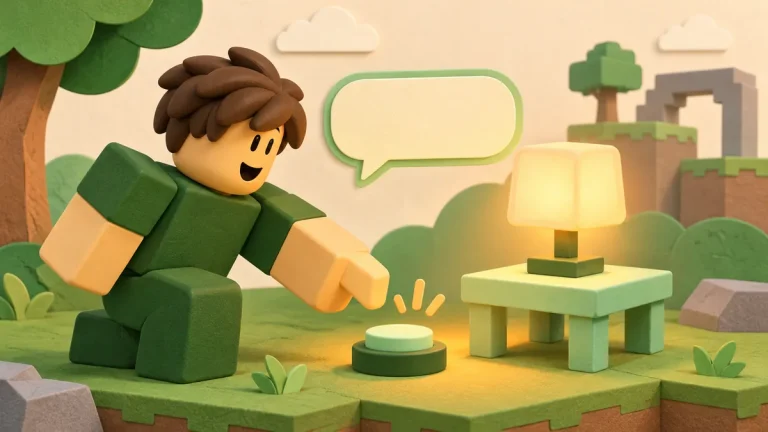
Start Play, find the gray display and press Mint. The expected result is the mint palette color. To add Blue and Amber buttons, duplicate the TextButton with its LocalScript, change each button’s label and replace only the requested string with "blue" or "amber".
| Case | Expected result |
|---|---|
| A living player requests mint after the cooldown | The server changes the display to its mint value. |
| The request names purple | No change: the name is outside the allowed palette. |
| The request contains the number 17 | No change: the argument has the wrong type. |
| Two requests from one player arrive less than a second apart | The second is rejected by the server cooldown. |
| Another living player requests amber | The shared display may become amber, under the deliberately open rule. |
For the invalid cases, change the argument in your own LocalScript and start a fresh test. Keep an eye on server Output for errors. In a multi-client Studio test, inspect both clients to check that they see the server’s color change. Record which argument was sent and which color appeared; that makes a failed case much easier to trace.
Match the checks to the real action
This palette avoids accepting arbitrary numbers or complex objects. That is a useful simplification for learning, not a complete security design for every remote. A purchase handler must verify its server-owned price and available balance; a nearby interaction must verify location; a private control must verify who may use it.
The one-second interval is per player. Several players can still take turns changing the same display quickly. If that is undesirable, add a shared display cooldown as an additional product rule rather than pretending the per-player timer already provides one.
When expanding the example, change one behavior and compare the result with the previous version. The diff walkthrough helps keep those changes visible, and the Output guide helps locate a failed object lookup or unexpected type.
References
- Roblox remote events and callbacks — communication direction and the Player parameter.
- Roblox client-server boundary guidance — server-side validation and permission checks.
- Roblox debounce patterns — timing repeated actions.

Comments 0
No approved comments yet. Start the discussion.