Why a Roblox Update Can Break a Script
Reproduce an object-name dependency in your own Studio project, then use a before-and-after worksheet to distinguish game changes from code and source changes.
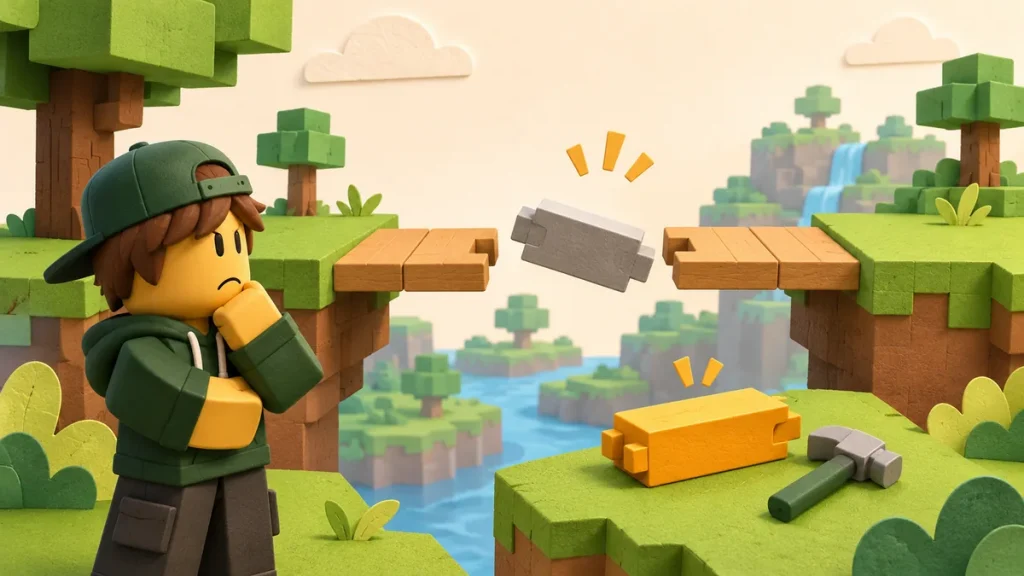
“It stopped working after the update” is a useful starting point. It still leaves several suspects: the game, your saved code, a remote file or the environment running it. First find out which dependency changed.
A renamed object is an easy failure to reproduce in your own Studio project. We’ll change one name, watch which lookup should fail and repair that exact mismatch.
Separate four things that can change
| Change | Evidence to compare | Common mistaken conclusion |
|---|---|---|
| Your source text | Two saved versions of the file. | “The game changed” when the local file was edited. |
| A remote dependency | Recorded revisions or retrieved files. | “The code is identical” because only the loader was compared. |
| The game model | Object names, paths, classes and starting conditions. | “The function is missing” when its target moved. |
| The execution environment | Context, version and platform details. | “The script is broken everywhere” after one setup fails. |
Keep page edits out of the comparison unless they matter. A new description date can say nothing about changes to the source or game. Label each date with what it actually refers to.
Create a tiny dependency in Studio
In a new project, add a Script under ServerScriptService and set RunContext to Server. This setup creates a model and a single anchored part:
local lesson = Instance.new("Model")
lesson.Name = "UpdateLesson"
lesson.Parent = workspace

local pad = Instance.new("Part")
pad.Name = "Checkpoint"
pad.Anchored = true
pad.Position = Vector3.new(0, 3, -10)
pad.Parent = lesson

local target = lesson:FindFirstChild("Checkpoint")
if not target or not target:IsA("BasePart") then
    warn("Expected a BasePart named Checkpoint")
    return
end

target.Color = Color3.fromRGB(80, 180, 120)
print("Checkpoint color updated")
The successful path should turn the part green and print the final message. It depends on finding a child called Checkpoint, then confirming that child is a BasePart.
Use a clean playtest for each attempt. Extra copies created by another script would make this tiny hierarchy unnecessarily confusing.
Simulate an update by changing one name
Stop, change pad.Name to FinishPad and leave the lookup alone. On the next run, the warning should appear: FindFirstChild is still looking for Checkpoint.
The Script can start and the part can exist while that lookup fails. The old string simply no longer matches the child’s name. That’s a much more useful diagnosis than “scripting broke.”
Change the lookup to FindFirstChild(“FinishPad”) and make the warning match. That repairs the dependency demonstrated by this example. There’s no reason to add a delay to fix the spelling.
Why waiting is not a universal fix
Waiting helps when an object is expected but hasn’t arrived yet. It won’t make a permanently renamed object reappear under its old name. Check the intended hierarchy before adding waits.
Moving a child inside another model can cause a similar failure. A direct-child lookup at the old parent won’t find it there. Inspect the path before broadening the search.
A broad search can accidentally find another object with the same name. The repair should find the intended object, not merely silence the warning.
Capture a before-and-after record
Write down the changed path: UpdateLesson/Checkpoint became UpdateLesson/FinishPad. The lookup is where the mismatch is detected; the color assignment is skipped afterwards.
For a catalog report, preserve the page, revision or saved text, relevant error and point at which behavior changed. Say if you compared only the loader while its remote contents remain unread.
“The menu didn’t appear” describes a symptom. “The update removed an object” proposes a cause. Keep the second statement tentative until you’ve found evidence for it.
Use the first meaningful error
Start with the first relevant error and the line it points to. A missing dependency can produce a whole trail of later messages; fixing each one separately may just chase the consequences.
In your own Studio project, a breakpoint lets you inspect values and the call stack. With code you can’t fully inspect, keep the report to what you can observe, such as retrieval failing before an object lookup is reached.
What this example does not establish
A real update may involve several changes at once. This lesson isolates one of them so you can recognize the pattern, rather than offering a diagnosis for every third-party script.
Keep the small working example alongside the broken version. You now have something another person can reproduce while you gather evidence about the larger problem.

Comments 0
No approved comments yet. Start the discussion.